
Ask Subscrr AI
A subscription manager that looks at everything you pay for, finds where you overpay and says what to do first.
Subscrr AI lives with your subscriptions. Open the Subscriptions tab and tap the chat icon in the top left corner; it appears once you track at least one subscription, because there is nothing to reason about before that. You can also start it from a single subscription: the same icon at the top left of that subscription's own screen opens the chat with a question about it, "Netflix: am I overpaying?" for instance, already typed in the message field. You send it yourself.
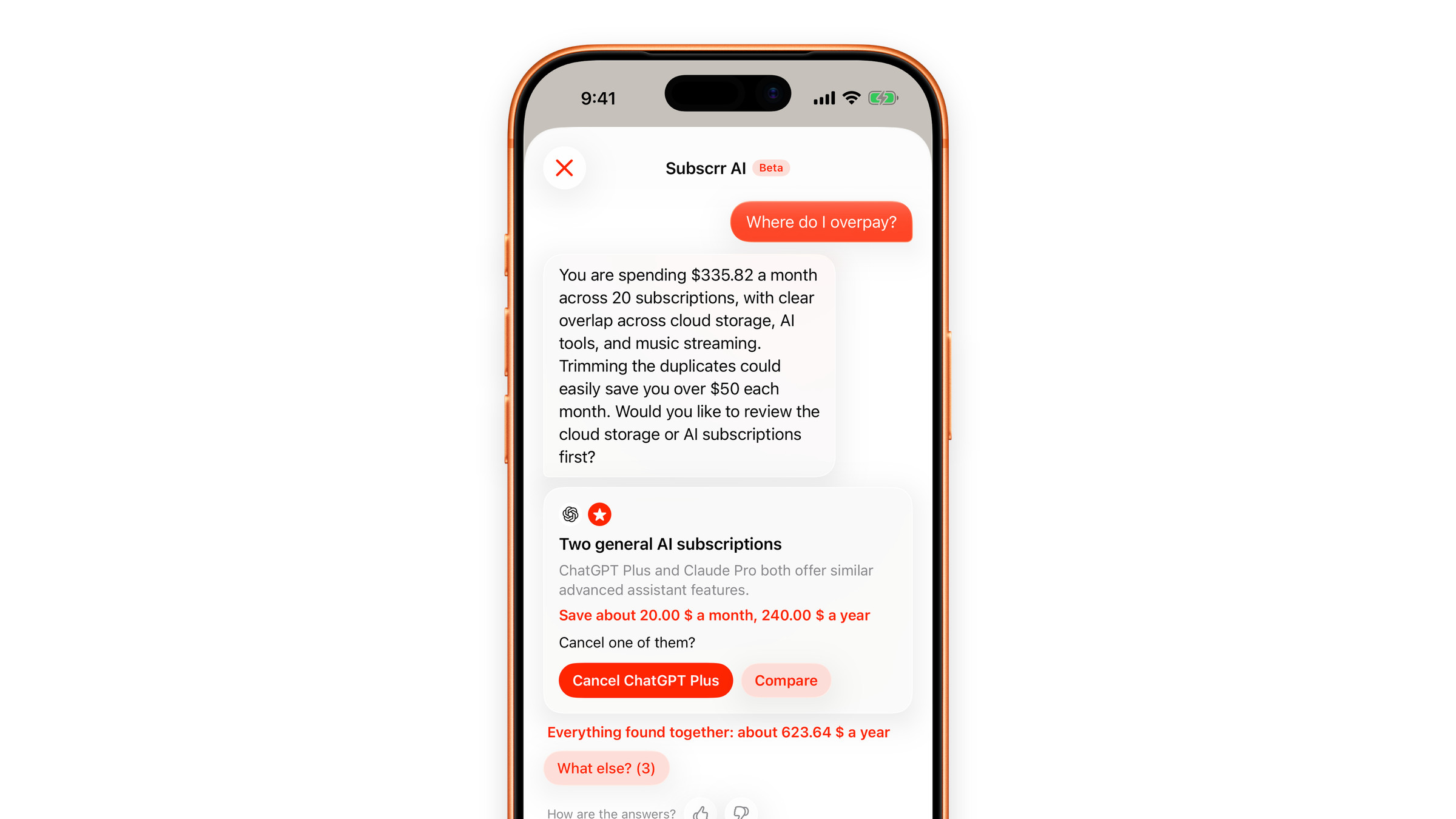
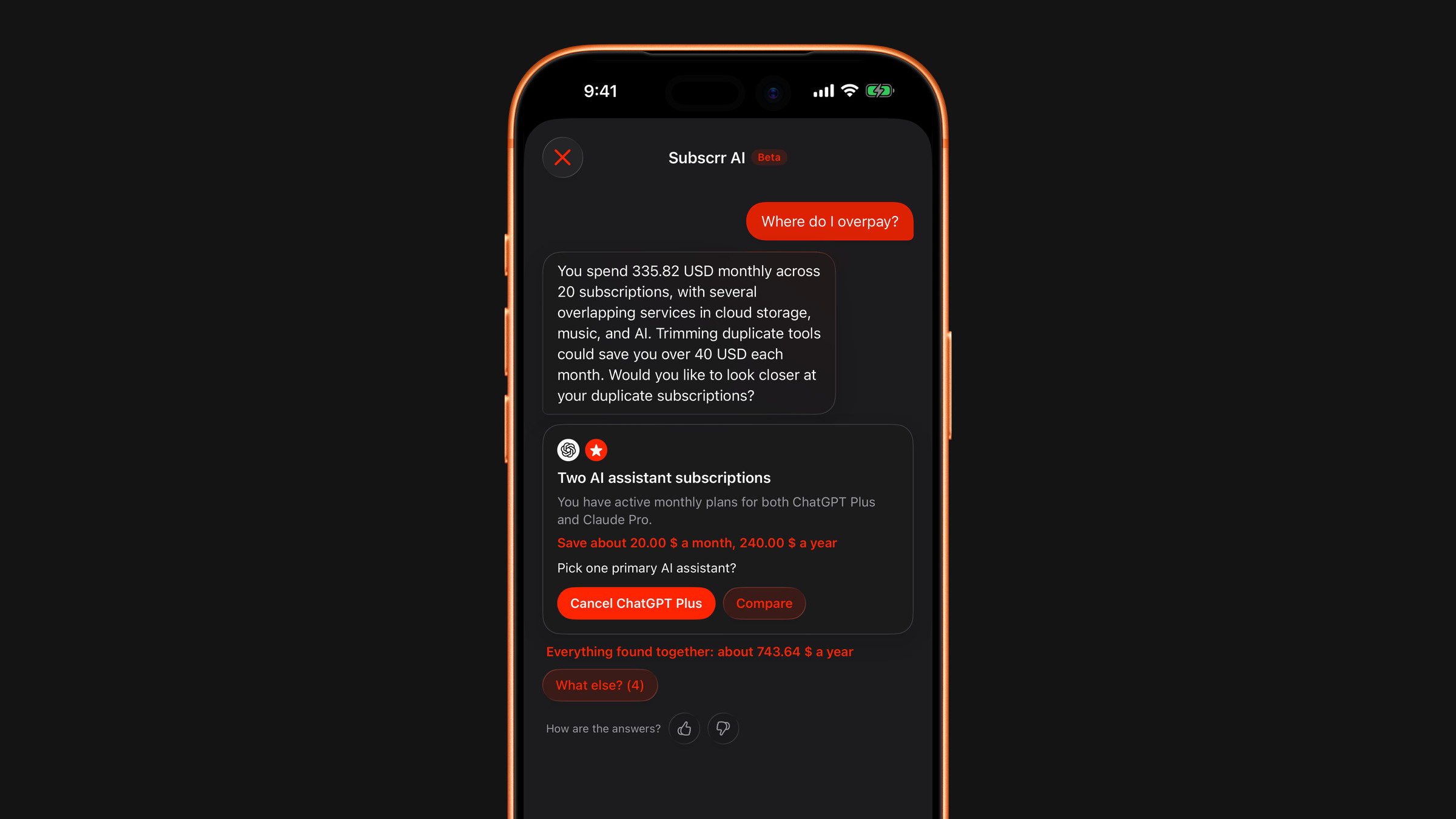
The chat carries a Beta label, and under the message field it reminds you that Subscrr AI can make mistakes, so check the numbers.
What it does
The first time you open it, a short introduction, Your subscriptions, sorted out, says what it can do; tap Get started. After that you see an empty chat with four buttons: Where do I overpay?, What should I cancel?, Any duplicates? and What is due soon?. The chat does not start thinking by itself: nothing is asked until you tap a button or write a question.
Where do I overpay? gives a short overview of all your subscriptions at once: the most expensive ones, services that overlap, recent price increases, charges due in the next days, and roughly how much you could save per month. The other buttons are ordinary questions. Beyond them, ask anything in your own words:
- "How can I save on subscriptions?"
- "What should I cancel?"
- "Do I have duplicates?"
- "What is due soon?"
- "Why do I spend so much?"
The answers come with finding cards. A card shows the logos of the services it is about, a short title saying what was found, one sentence on why it matters, one suggestion of what to do and, where it can be estimated, how much it saves a month and a year. The chat leads with the most valuable finding; if there are more, What else? brings up the next one without a new question, up to five findings in all. When there are several, the chat also shows what they save together over a year; two findings about the same subscription are counted once.
For a cancellation or a duplicate the saving is worked out by the app from the prices in your own list. For other kinds of finding, a yearly plan for example, it is the assistant's estimate, so treat it as one.
Acting on a finding
Each card has one main button, depending on what it is about:
- Cancel ChatGPT Plus, with the name of the service in question, for a suggestion to cancel or for a duplicate. It opens the service's cancel page if one is saved (for an Apple subscription, your Apple subscriptions page); otherwise it opens the subscription screen.
- Compare, next to it on a duplicate, asks the chat which of the two to keep.
- Check, for a price increase, a yearly plan or a cheaper tier, opens the subscription screen.
- Open, for anything else, does the same.
The subscription screen is where you change the price, set an end date or delete it. The assistant never cancels or changes anything by itself.
Adding a subscription by typing
Write something like "add Netflix 45 AED a month". The assistant shows an Add this subscription? card with the name, price and period, the date of the next charge and the category. Nothing is saved until you tap Add. If you already track a similar one, the card says so and offers Open existing. If a price or period is missing, it asks instead of guessing, and if you did not say when the next charge is, it asks that too, with options such as today or "don't remember".
A changed price works the same way: "Claude Pro is 385 now" brings up an Update the price? card with an Update button.
Adding from a screenshot
The plus button next to the message field attaches a picture: Camera, File, Photo or Clipboard, up to four images, which wait in the field until you send them. A screenshot of your App Store subscriptions or of a bank statement comes back as one Add card per subscription found. Nothing is added until you tap Add on a card.
What it does not know
Subscrr has no data on how often you use a service. When a recommendation depends on that, the assistant asks you a short question with options.
What leaves your phone
To answer, the chat sends your subscription list (names, prices, periods, dates and any notes you wrote) and the conversation to the recognition service through our own proxy, the same route receipts take. No account or email is attached, and the proxy does not keep it. See What happens to scanned receipts.
Free messages
Without Premium you get five messages, and that is one counter for all three chats: the one in Plan, the one in Spending and Subscrr AI itself. Not five in each, and not five a day either: it is one allowance, and it does not come back tomorrow. The starter buttons count like a typed question, and so do reading a screenshot and tapping Retry. Answering a question the assistant asked by tapping one of its option buttons is not a message.
When they run out, the chat says so and offers Premium, which lifts the limit. In Plan, if you have no plan yet, that same message carries an Import a CSV table button: building a plan from a table costs no messages at all.
Rating answers
Below the conversation, How are the answers? offers a thumbs-up, Helpful, and a thumbs-down, Not helpful. A thumbs-up teaches the chat what suits you: a short excerpt of that answer is kept on your device and goes along with later requests as an example of the length and tone you liked.
A thumbs-down opens a short form. Pick a reason (Inaccurate, Off topic, Too slow or Unclear) or write a few words, and the chat avoids that next time. What you send in the form is read by the author of the app, together with your last question and the answer, so that the problem can be fixed; the form says so under the field. No device identifier, email or list of subscriptions goes with it. What the chat has learned from your ratings is stored only on your device.
Clearing the conversation
Settings → AI chats → Clear all chats deletes the messages in all three chats at once, along with what the chats learned from your ratings. Your plan, your subscriptions and your calculations stay, and so does anything a chat already added for you, such as a spending entry or a plan line. Only the conversation goes.
Clearing does not give free messages back. The counter tracks requests already sent to the model, not what is on the screen.
Did this answer your question?