
Edit the plan table
What a row in the plan is, the five rules that decide its amount, and how to add or remove rows.
The plan is a table: your money as rows, months as columns. Open the Spending tab and switch to Plan at the top (on iPad and Mac the plan is a tab of its own). The horizon is 12 months to start with, and you change it in Plan settings: 1 to 12 months are free, and longer horizons up to 60 months are part of Premium.
A row is not a number you type twelve times. It is a type of money plus a rule, and Subscrr fills the months from that.
What a row is
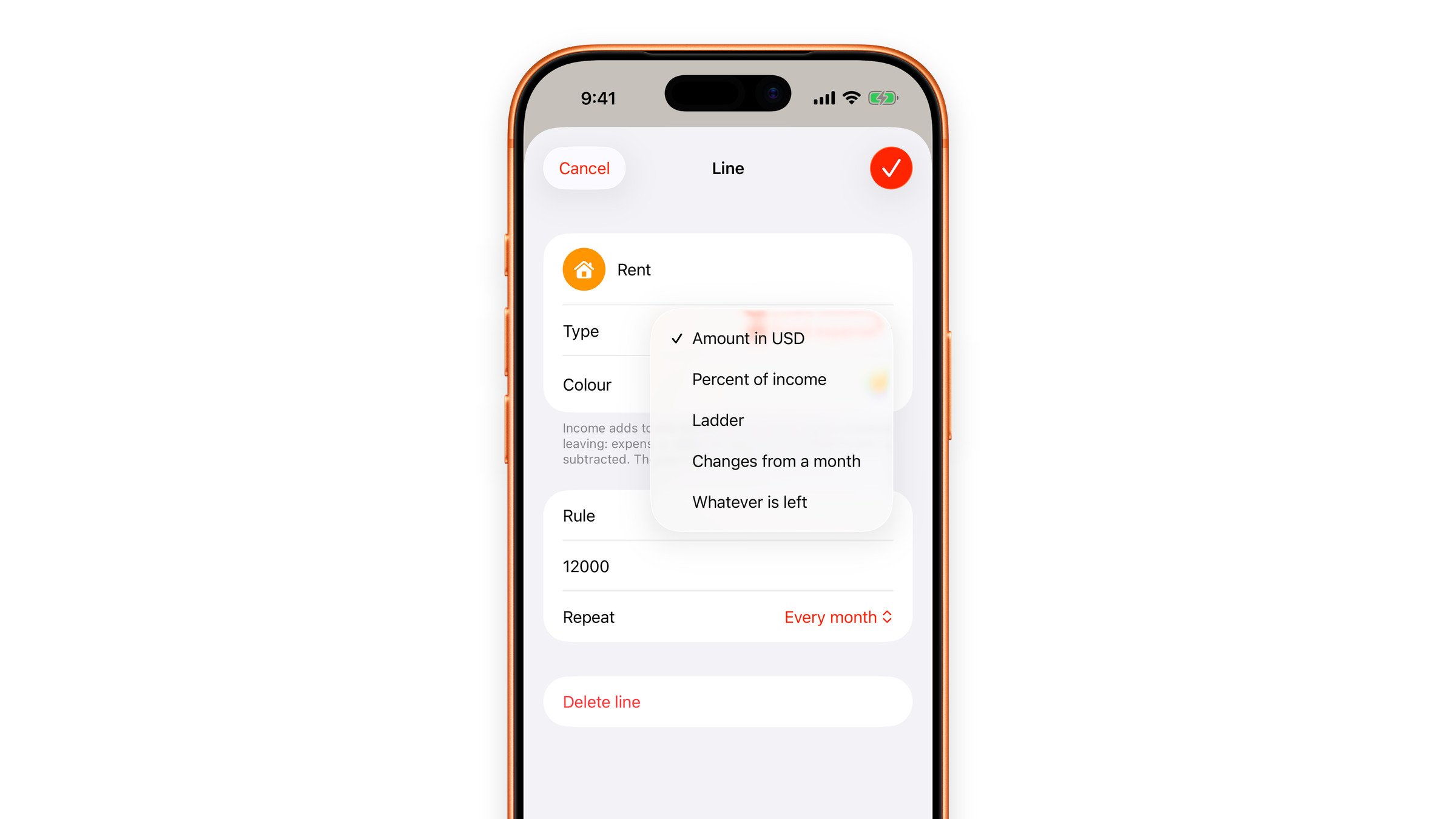
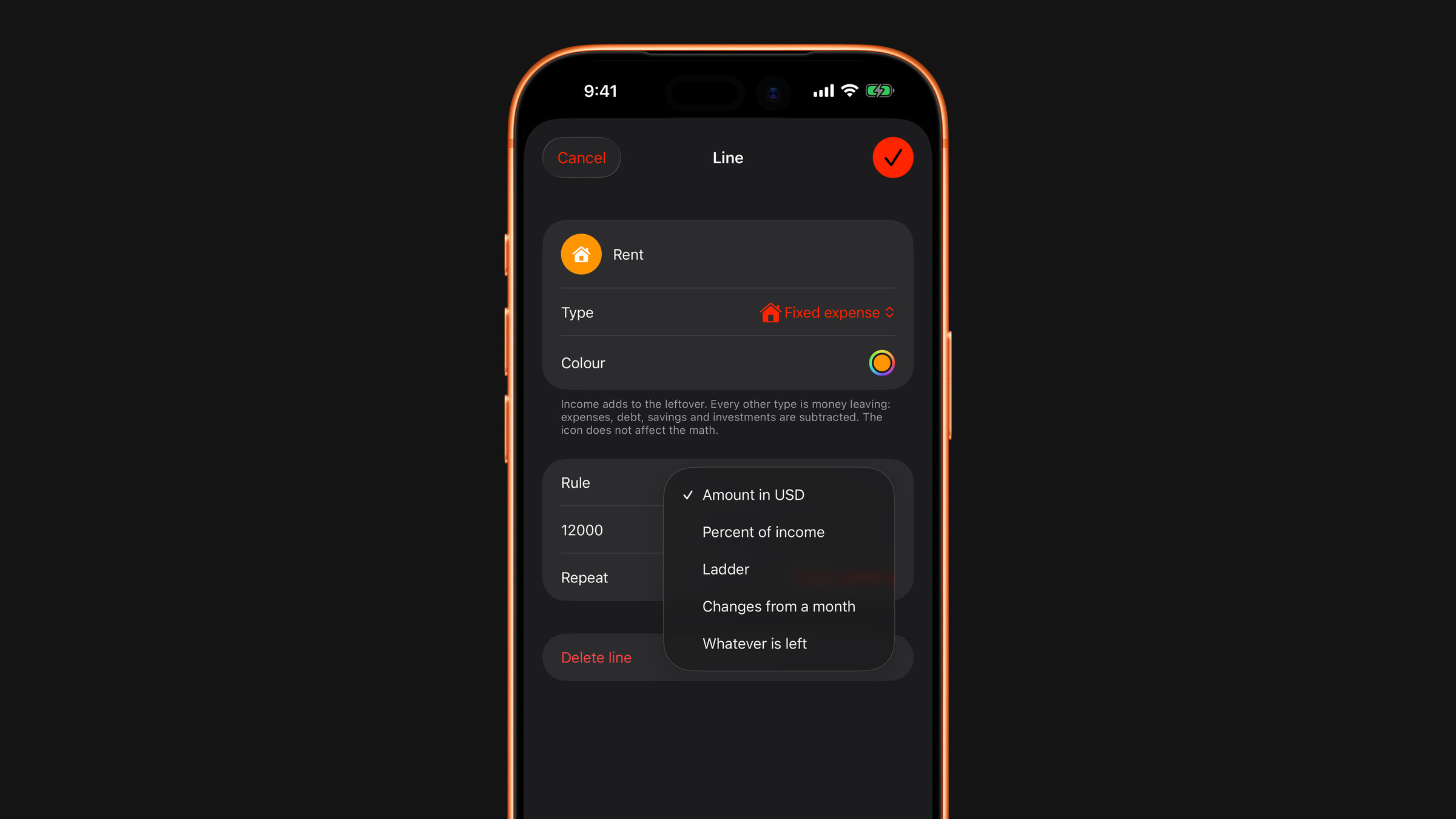
Tap a row name to open its editor, titled Line. It holds the name and icon, the Type, the Colour and the Rule. The type decides the direction of the money:
- Income
- Fixed expense
- Debt
- Savings
- Investments
- Living
- Other
Income is the only type that adds to the balance. Everything else takes from it.
Savings and investments leave the free money
Saving is not the same as keeping. Savings and Investments are subtracted like any other row: the money has left the month. The Left over row at the foot of the table shows what is free after every row has taken its share, and what you put aside is no longer in it. That is the honest picture, and it is why a plan with ambitious savings can still run out of living money in March. Each month's leftover is that month's money for living: it is not carried over into the next month.
Two switches in the editor change this for a Savings or Investments row. Free money says the amount is not an expense: it no longer reduces what is left over and never counts as a deficit. Main source says the amount is the whole pot the plan lives on rather than a monthly payment, and the row counts it down month by month.
If you would rather not see the Left over row, the Show «Cash left» switch in Plan settings hides it.
The five rules
Rule decides how the amount lands in the months:
- Amount in USD, or whichever currency you use: one figure. It is the same every month unless you change Repeat, described below.
- Percent of income: a percentage, and the row recalculates whenever income changes.
- Ladder: a First month amount and a Change per month step, with a plus or minus button to set the direction, so the row grows or shrinks by that step month after month. It never goes below zero.
- Changes from a month: one amount Until then, another From then on, with From month saying when the change happens.
- Whatever is left: the row takes what the other rows have not taken, and never less than zero. If several rows use it, they split the remainder equally.
The plan has a single currency, taken from Settings.
How often the amount is taken
Under Amount in … sits Repeat:
- Every month: the default.
- Once: the amount lands only in the Month you pick, and every other month gets 0.
- Every 3 months, Every 6 months and Once a year: set First payment to the month of the first charge, and the amount repeats at that interval to the end of the plan. This is where quarterly insurance and annual plans go.
- Custom interval: the same, with a stepper for any interval from 1 to 24 months.
Why the rule matters more than the number
A number is true for one month. A rule is true for the year: raise the income row and every percentage row moves with it, add an expense and the remainder row gives way by itself, push the horizon out to 24 months and the table keeps filling on its own.
You can still tap a cell and type straight into it when one month is genuinely different, and that month keeps your figure. A small sum such as 900+120 works too. A cell you have changed is shaded, so you can see where the table no longer follows the rule. Press and hold a cell to spread its figure over the row: Apply to all months, Apply to all months on the right or Apply to all months on the left.
Tap a month name at the top for the month menu:
- Back to the rules: removes the figures you typed in that month, so every row follows its rule again.
- Zero out expenses: sets every row except income to 0 for that month.
- Copy to next month: copies this month's figures into the next one.
- Apply to all months: makes this month's figures the rule of every row for the whole plan, apart from Whatever is left rows.
- Delete month: removes the month and shortens the plan by one. It asks first.
Adding and removing rows
- Add category at the foot of the table creates a new row, and you set its name, type and rule in the editor. When the app holds data that is not in the plan yet, the button opens a short menu instead: Add category for an empty row, and Subscriptions, Spending or Receipts for a row that follows that data. For subscriptions and spending you first tick what belongs in the row. Such rows carry a small circular-arrows icon next to the name, and Keep your plan up to date explains how they behave.
- Press and hold a row name for its menu: Colour, Insert above, Insert below, Duplicate, Clear contents and Delete line. Rows that follow subscriptions or spending also have What goes in. Clear contents keeps the row and sets it to zero. Deleting asks for confirmation first.
- Drag a row by its name to move it up or down.
On the free plan you keep one saved plan; Premium removes the limit. See what is free and what is Premium.
Did this answer your question?