
Build your financial plan
Describe your money in a sentence or two, or send a table you already keep, and get a month by month picture of what is left.
A plan is the answer to a question a subscription list cannot answer: after the salary comes in and everything leaves again, how much is actually free, and in which month does it get tight.
It lives in the Spending tab. At the top of that tab sits a switch with two positions, Spending and Plan, and the plan is the second one. On iPad and Mac the plan is a tab of its own. Touch and hold the Subscrr icon on the Home Screen (on a Mac, right-click it in the Dock) and New plan takes you to the same place with an empty chat. If you already keep a saved plan and have no Premium, it opens the Premium screen instead: a second plan is part of Premium.
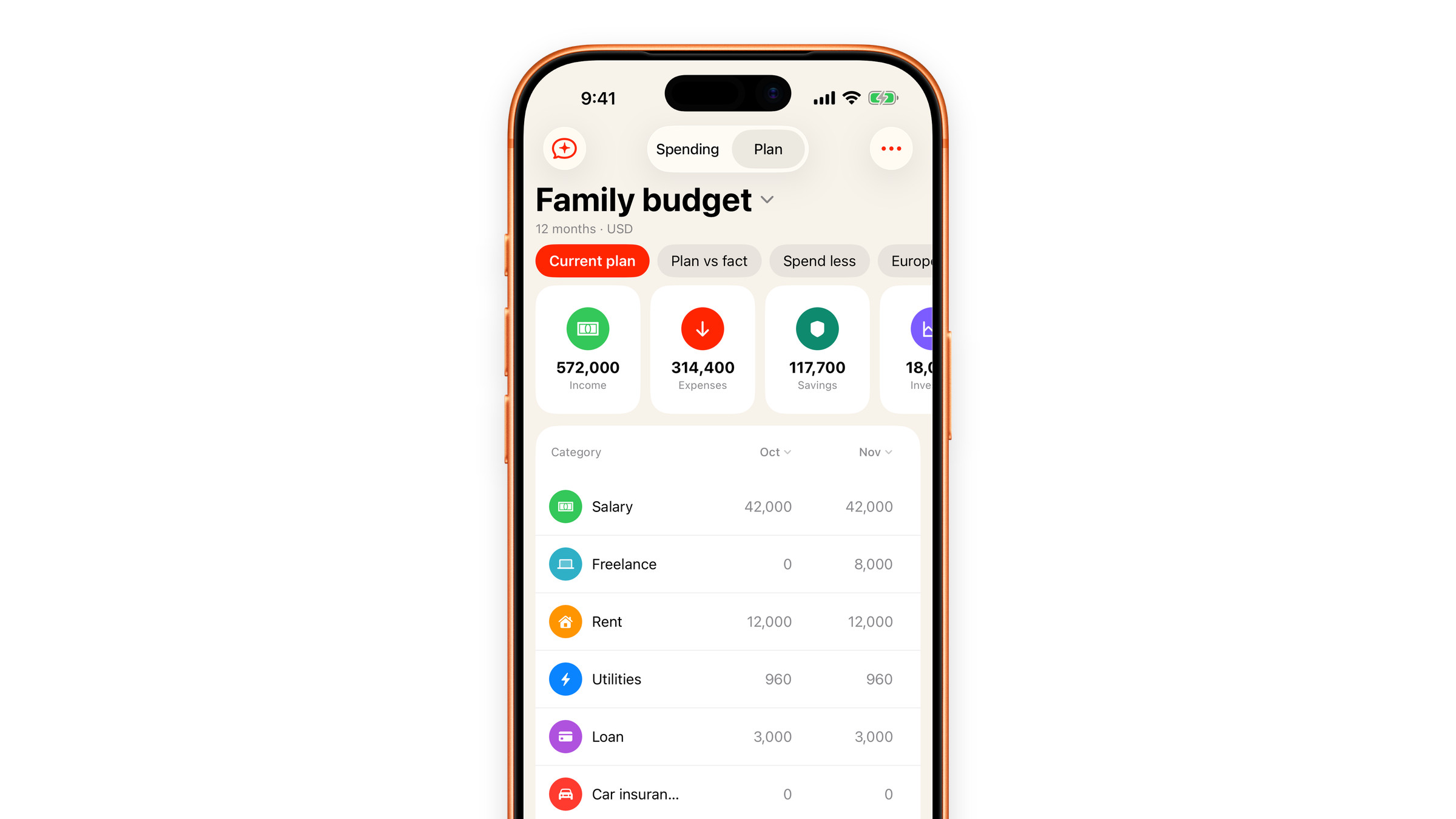
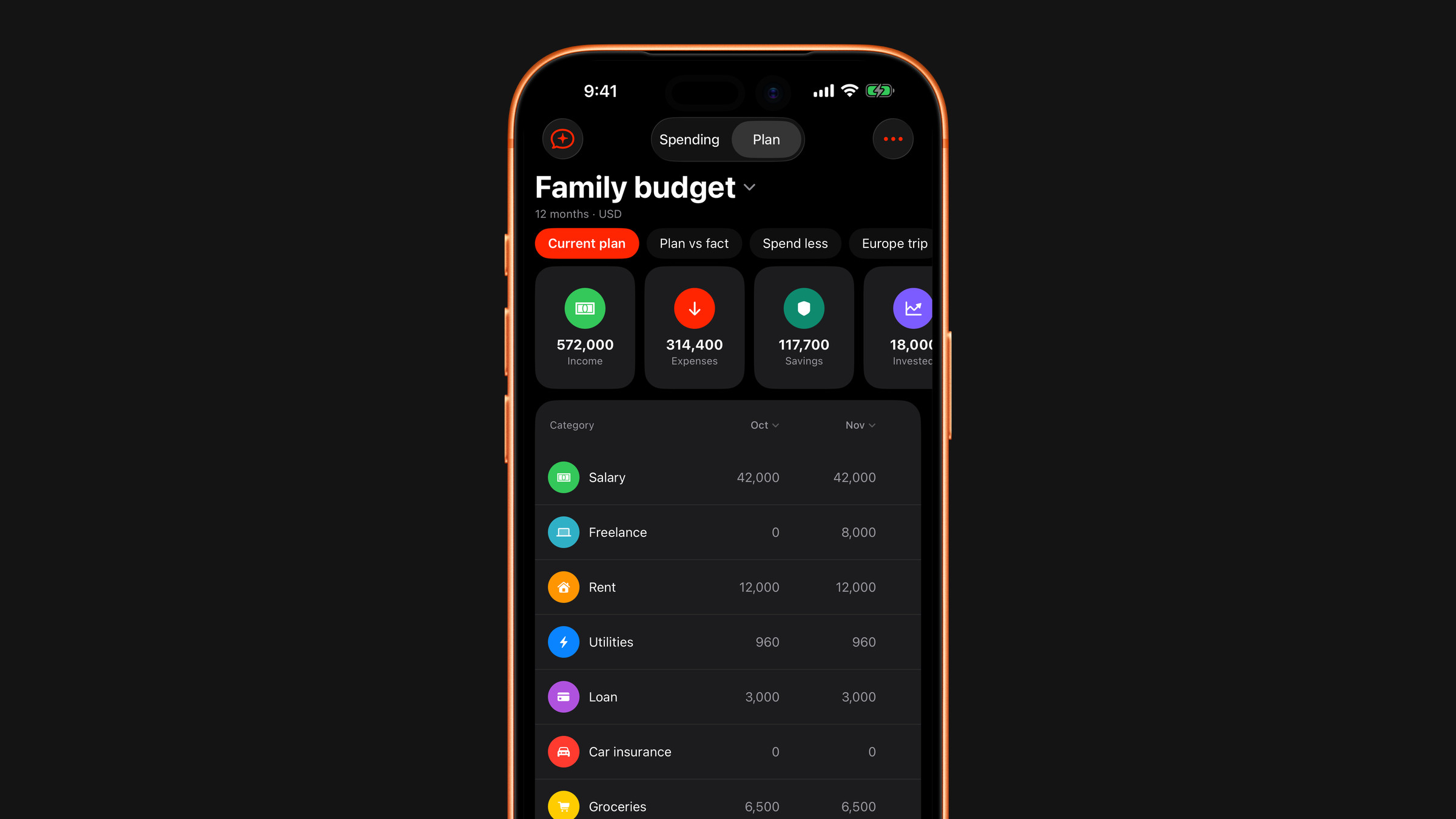
Describe it in your own words
The fastest way in is one message. Write your money the way you would say it out loud:
I get 30,000 a month, rent is 10,000, the loan is 5,000, and I want to put aside 5,000.
Subscrr reads that and lays out a table across the whole horizon, one column per month. Nothing to fill in first, no form, no categories to choose. Pick how far ahead to look in the Projection menu above the message field before you send.
Once the plan exists, the chat icon at the top left of Plan opens the same chat again, so you can correct the plan in words.
Or send a table you already keep
If your money already lives in a spreadsheet, send the file instead: CSV, TSV, plain text, Excel (.xlsx) or Word (.docx). Tap the plus next to the message field and choose File (on a Mac the plus opens the file panel straight away), or open the file with Subscrr from Files or another app. The rows are turned into plan lines at once, without the AI, and you get the same table. Excel is read from its first sheet, and Word from its tables, or from its lines of text when it has none.
Numbers files are the exception. Subscrr cannot read them directly, so it attaches the preview that Numbers keeps inside the file and the AI reads that, the way it reads a photo or a PDF of a statement. That goes through the chat and counts as a message.
What you see
Every line is one kind of money, and income is the only kind that adds to the balance: savings and investments leave your free cash like any other expense, unless you mark a row as free money. Which types exist and how a line fills the months is the job of Edit the plan table. Above the table a row of tiles sums the plan up: Income, Expenses, Savings, Invested and Left over.
Under the lines runs the Left over row, the number most people open the plan for: what is free in each month of the horizon. Read along it and the tight month shows up long before you get to it, which is the point of looking a year ahead rather than at the current balance.
Horizon and currency
The horizon starts at 12 months. You choose it before you build, in the Projection menu, and change it later in Plan settings, from the ••• menu at the top right. Anything from 1 to 12 months is free. Longer horizons, from 18 months up to 5 years (60 months), are part of Premium.
A plan uses one currency, the one you picked in Settings. If you change it there, the numbers stay as they are and only the currency label changes, so nothing in the table is converted behind your back.
What it costs
Without Premium you keep one saved plan, which is enough to plan your own year. If you delete it, you can build another. Premium removes the limit, and a table imported from a file counts as a plan like any other.
The chat that builds the plan shares its free allowance with the other Subscrr AI chats: five messages in total across the plan, spending and Subscrr AI chats, not five in each, and they are not handed back the next day. Tapping an answer button under a question the assistant asks does not use one. When the messages run out, the chat says so and offers Premium, and if you have no plan yet the same message carries an Import a CSV table button. Importing a table costs no messages at all, apart from the Numbers case above. See What is free and what is Premium.
Next
- Edit the plan table: change a line, set a percentage of income, make a payment repeat every few months.
- Try a scenario: ask what happens if you save more, earn less, or buy something big in March, without touching the plan itself.
- Keep your plan up to date: what the app asks when your subscriptions change, and why it asks rather than acts.
Did this answer your question?